
The Complete Website Speed Checklist: 47 Things to Check
By Rome Thorndike
Images (Items 1-8)
- Convert to WebP or AVIF. WebP is 25-35% smaller than JPEG. AVIF is 30-50% smaller. All modern browsers support both. This is the single highest-impact change for most sites.
- Add responsive srcset. Serve 400px images to phones, 800px to tablets, 1200px to desktops. Mobile users should not download desktop-sized images.
- Lazy-load below-the-fold images. Add
loading="lazy"to every image below the initial viewport. Do NOT lazy-load the hero image. - Set explicit width and height. Every
<img>tag needs width and height attributes. Without them, the browser cannot reserve space, causing layout shift (CLS). - Compress to target sizes. Hero images under 100KB. Content images under 50KB. Thumbnails under 20KB. Any image over 200KB needs attention.
- Use fetchpriority="high" on the hero image. This tells the browser to prioritize downloading the LCP element before other resources.
- Remove EXIF data. Camera metadata adds 10-50KB per image. Strip it during compression.
- Serve images from a CDN. Images hosted on a CDN load from the nearest edge server. This reduces latency by 50-200ms per image on first load.
CSS (Items 9-15)
- Inline critical CSS. CSS needed to render the visible viewport should be in the
<head>, not in an external file. This eliminates a render-blocking request. - Remove unused CSS. Most sites load CSS for components not on the current page. Tools like PurgeCSS can strip unused rules. Our static sites ship 25-40KB of CSS because every rule is intentional.
- Minify CSS. Remove whitespace, comments, and redundant syntax. Saves 15-30% file size. Use cssnano or Lightning CSS.
- Avoid CSS @import. @import creates sequential loading. Use
<link>tags instead so the browser downloads CSS files in parallel. - Use CSS instead of JavaScript for interactions. Smooth scroll, hover effects, accordions (
<details>), and simple animations can all be CSS-only. - Reduce specificity and nesting. Deeply nested selectors slow style recalculation. Keep selectors flat and specific.
- Consolidate to one CSS file. Multiple CSS files mean multiple HTTP requests. Combine into one minified file under 50KB.
JavaScript (Items 16-23)
- Defer all non-critical JS. Add
deferto script tags. This downloads in parallel but executes after HTML parsing. - Remove unused JavaScript libraries. If you loaded jQuery for one animation, replace it with 5 lines of vanilla JS and save 90KB.
- Audit every script. For each script: is it still used? Can it be replaced with CSS? Does it need to load on every page?
- Load third-party scripts after DOMContentLoaded. Analytics, chat widgets, and tracking pixels do not need to block page rendering.
- Bundle and minify. Combine JavaScript files and minify with Terser or esbuild. Reduces requests and file size.
- Remove console.log and dev-only code. Development artifacts add bytes that production visitors download.
- Limit Total Blocking Time. Keep TBT under 200ms. If any single script takes more than 50ms to execute, split it or defer it.
- Avoid document.write. It forces synchronous parsing and blocks rendering.
Fonts (Items 24-28)
- Use font-display: swap. Shows text immediately in a fallback font, then swaps when the custom font loads. Prevents invisible text.
- Self-host fonts. Loading from Google Fonts adds 2 extra round trips (DNS + CSS). Self-hosting is one round trip.
- Preload the primary font.
<link rel="preload" href="/fonts/main.woff2" as="font" type="font/woff2" crossorigin> - Limit font weights. Each weight is a separate file. Two to three weights (400, 600, 700) cover most designs. Do not load 6 weights.
- Use variable fonts. One file contains all weights. Often smaller total size than loading 3-4 individual weight files.
Server and Hosting (Items 29-35)
- Target TTFB under 200ms. If your server takes 800ms to respond, nothing else can start. Move to managed hosting or static files on a CDN.
- Enable GZIP or Brotli compression. Reduces text-based file transfers by 60-80%. Most modern hosts enable this by default.
- Set Cache-Control headers. Static assets (CSS, JS, images, fonts) should have
max-age=31536000. Use versioned filenames for cache busting. - Use a CDN. Cloudflare (free tier) or another CDN ensures assets are served from the nearest edge server worldwide.
- Enable HTTP/2 or HTTP/3. Multiplexes requests over a single connection. Most modern hosts support this.
- Use HTTPS. Required for HTTP/2, improves security, and is a minor ranking signal. Free via Let's Encrypt.
- Consider static hosting. GitHub Pages, Cloudflare Pages, and Netlify serve static files from a global CDN for $0. TTFB: 10-30ms.
Third-Party Scripts (Items 36-41)
- Audit all third-party scripts. Open DevTools Network tab, filter by third-party. Count requests and total size. Common offender: chat widgets at 200-400KB.
- Remove unused tracking. If nobody checks the Hotjar dashboard, remove the script. Every removed script improves speed with zero effort.
- Replace chat widgets with a contact link. If less than 1% of visitors use chat, save 200-400KB on every page load for the 99% who do not.
- Use Google Tag Manager sparingly. GTM makes it easy to add scripts. That ease leads to bloat. Audit GTM tags quarterly.
- Delay non-essential scripts until interaction. Load analytics on first scroll. Load chat on first click. Keeps initial load clean.
- Consolidate analytics. GA4 + Facebook Pixel + Hotjar + HubSpot = 4 tracking scripts. Do you need all of them? Each one costs 30-80KB.
CMS-Specific (Items 42-47)
- WordPress: Reduce plugins to under 10. Each plugin adds global JS/CSS. 20 plugins = 800KB+ of overhead. Audit and remove ruthlessly.
- WordPress: Replace page builders with a lightweight theme. Elementor adds 300KB+ to every page. GeneratePress or Astra add under 30KB.
- WordPress: Enable server-side caching. WP Rocket or LiteSpeed Cache. Eliminates PHP processing on repeat visits.
- Webflow: Minimize interactions. Each interaction adds JS payload. Sites with 10+ interactions score 8-15 points lower.
- Webflow: Optimize images manually. Webflow does not enforce image optimization. Compress before uploading.
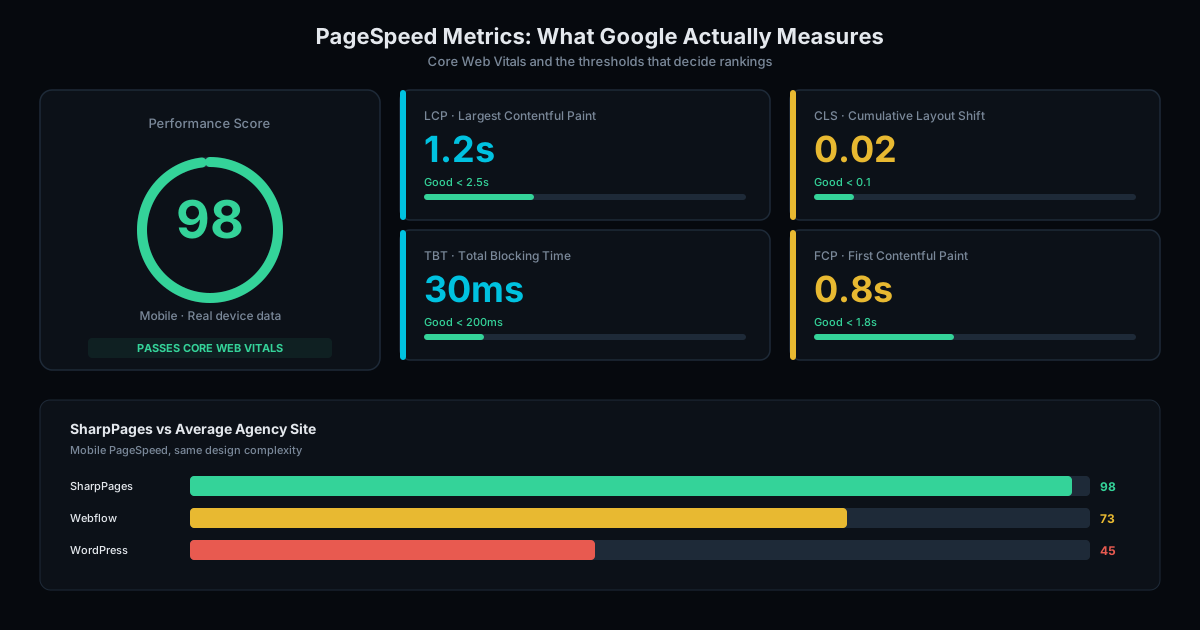
- Consider rebuilding on static HTML. If you have exhausted the above items and still cannot break 85, the platform is the bottleneck. Static HTML scores 90-98 by default. Migration starts at $2,500. Audit your site to see the gap.
Read our complete page speed optimization guide for detailed explanations of each technique.
How to Optimize WordPress Website Speed: The Full Walkthrough
WordPress sites get slow for predictable reasons. Page builders, plugin stacks, unoptimized images, shared hosting, and uncached PHP execution combine into a 4 to 8 second mobile load. The fix is also predictable. Work through these eight steps in order and most WordPress sites move from a mobile PageSpeed score of 45 to 60 into the 75 to 85 range. The remaining ceiling is the platform itself.
Step 1. Baseline every key template. Run PageSpeed Insights on your homepage, a blog post, a category archive, and your top conversion page. Record the mobile score, LCP, CLS, INP, and TBT. These four templates cover 90% of traffic.
Step 2. Audit your plugin stack. In wp-admin, count active plugins. Anything over 15 is a red flag. Identify the ones loading global CSS or JavaScript on every page (typical offenders: contact forms, sliders, social share, popups, Elementor, WPBakery). Tools like Query Monitor or Asset CleanUp show per-page asset weight. Target: deactivate at least 3 plugins, then re-test.
Step 3. Replace or detune the page builder. Elementor and WPBakery add 300KB to 600KB of JavaScript to every page. If switching builders is too disruptive, enable Elementor experiments (Optimized DOM Output, Improved Asset Loading, Inline Font Icons) and unlink unused widgets. The cleanest fix: rebuild on a lightweight theme like GeneratePress, Astra, or Kadence. Themes under 30KB ship with the structure you need and skip the bloat.
Step 4. Install one (only one) caching plugin. WP Rocket ($59/year) is the easiest. LiteSpeed Cache is free if your host runs LiteSpeed. W3 Total Cache is free and powerful but harder to configure. Pick one. Enable page caching, browser caching, GZIP, and minification of CSS/JS. Do not stack two caching plugins. They fight each other.
Step 5. Move images to WebP and lazy-load. Install Imagify, ShortPixel, or Smush. Bulk-convert your media library to WebP. Enable lazy loading for below-the-fold images. Set the hero image to fetchpriority="high" via a code snippet or your theme. A 700KB JPEG hero turns into a 180KB WebP and saves 0.5 to 1.5 seconds of LCP on mobile.
Step 6. Defer non-critical JavaScript. In your caching plugin settings, enable JavaScript deferral and "delay JavaScript execution" for third-party scripts (chat widgets, analytics, ad tags). Test carefully because aggressive deferral can break interactive elements. Defer first, exclude individual scripts only if they break.
Step 7. Add Cloudflare in front. Free tier. Caches static assets at the edge, adds HTTP/2 and Brotli compression, reduces TTFB to under 100ms for cached pages. Enable Auto Minify, Brotli, and APO ($5/month) for WordPress-aware edge caching. Set Cache Level to Standard, Browser Cache TTL to 4 hours minimum.
Step 8. Upgrade hosting if TTFB is still above 600ms. Cheap shared hosts (Bluehost, GoDaddy, HostGator at $3 to $10 per month) often deliver 800ms to 2,000ms TTFB. Managed WordPress hosts (Kinsta, WP Engine, Cloudways at $30 to $115 per month) deliver 200ms to 400ms TTFB. The hosting upgrade is often the single biggest score change you will see, especially on mobile.
Re-test the same four templates from Step 1. Most WordPress sites land between 75 and 88 on mobile after these eight steps. If you score 85+, stop and bank the gains. If you are stuck below 75 with no obvious culprit left, the platform is the ceiling and a static rebuild is the only path to 90+. Migrations from WordPress start at $2,500. Run a free audit to see the projected post-migration score.
Website Speed Ranking: How Speed Maps to Search Position
Speed is one signal among hundreds in Google ranking. It is also one of the few that you control directly. Core Web Vitals became a ranking factor in June 2021 and were expanded to include INP in March 2024. The effect on rankings is small per page but compounds across a site and against close competitors.
Google has stated repeatedly that Core Web Vitals are a tiebreaker, not a primary ranker. In practice that means: two pages with similar content and backlinks, the faster one wins. If your page is the only good answer for a query, slow load will not bury you. If you are competing against 10 similar pages in a commercial niche, speed becomes a deciding factor.
Indirect ranking effects matter more than the direct signal. Slow pages get higher bounce rates, lower pages-per-session, and lower return visits. All three feed into Google quality signals over time. Faster pages also crawl better. Googlebot has a crawl budget per site, and faster pages get more URLs indexed per session, which matters once you cross 500 pages.
For a small business site, do not optimize for ranking. Optimize for the user experience that produces the ranking. The site that loads in 1.2 seconds on mobile with a stable layout outconverts the site loading in 5.4 seconds even if Google rated them equal. Conversion lift compounds. A 0.5 percentage point lift on 2,000 monthly visitors is real revenue.
See our 90+ PageSpeed business impact analysis for the conversion math, and Core Web Vitals explained for the underlying metrics.
Frequently Asked Questions
Which items should I fix first?
Images (items 1-8) and JavaScript (items 16-23) have the highest impact. Image optimization alone can improve scores by 15-30 points. Deferring JavaScript reduces Total Blocking Time immediately.
How long does it take to work through this checklist?
Basic items (image compression, defer scripts, caching headers) take 1-2 days. Advanced items (critical CSS, font optimization, third-party script management) take 3-5 days. A full audit and fix cycle typically takes 1-2 weeks.
What if I fix everything and still score below 85?
The platform is the bottleneck. WordPress, Webflow, and Squarespace have architectural ceilings. Rebuilding on static HTML is the only way to consistently score 90+. Migration starts at $2,500.
Do I need to implement all 47 items?
No. Focus on the high-impact items first (images, JavaScript, caching). Most sites can gain 20-30 points by fixing items 1-8 and 16-23. The remaining items provide incremental improvements.
How do I optimize WordPress website speed without breaking the site?
Work in this order: baseline scores, audit plugins (cut to under 15), detune or replace page builders, install one caching plugin (WP Rocket or LiteSpeed Cache), convert images to WebP with Imagify or ShortPixel, defer non-critical JavaScript, add Cloudflare in front, and upgrade hosting if TTFB is still above 600ms. Test after each step so any breakage is easy to isolate.
What WordPress speed optimization services are worth paying for?
If you can dedicate 6 to 10 hours, doing the eight WordPress steps yourself with WP Rocket ($59/year) and Cloudflare (free) is the most cost-effective option. Paid services run $500 to $3,000 for a one-time optimization and $200 to $800 per month for ongoing management. Worth paying when the site generates over $20,000 per month and your time costs more than the service.
Does website speed affect SEO ranking in 2026?
Yes, but as a tiebreaker rather than a primary signal. Core Web Vitals (LCP, CLS, INP) are confirmed ranking signals. The bigger ranking lift usually comes from indirect effects: lower bounce, higher pages per session, better crawl efficiency, and higher conversion. A 1.2 second mobile load consistently outranks a 5+ second load in competitive commercial niches.
Ready to Fill Your Next Event?
We build the page, set up the pixels, and run the ads. You run the event.

Rome Thorndike
Rome Thorndike is the Founder & CEO of SharpPages, which builds event websites around a clear commercial goal: turning audience interest into registrations. He previously led marketing and revenue at Firmograph and held enterprise sales roles at Microsoft and Salesforce.
Connect on LinkedIn