
How to Track Facebook Ad Conversions With Meta Pixel and GA4
By Rome Thorndike
Why You Need Both
Meta Pixel tracks what happens on your site after someone clicks a Facebook or Instagram ad. GA4 tracks all traffic from all sources. You need both because:
- Meta Pixel feeds data back to Facebook's algorithm. It tells Facebook which clicks turned into leads, allowing the algorithm to optimize for conversions instead of clicks. Without it, Facebook optimizes for the cheapest clicks, not the best leads.
- GA4 gives you the full picture. It shows how Facebook traffic compares to Google, email, direct, and other channels. It also shows what people do on your site after they arrive: pages viewed, time on site, scroll depth.
Running Facebook Ads without conversion tracking is like running a billboard campaign and counting how many cars drive past. You see impressions but have no idea what those impressions produced.
Installing Meta Pixel
Step 1: Go to Meta Events Manager (business.facebook.com/events_manager). Create a new Pixel if you do not have one. Each ad account gets one Pixel, which works across all campaigns.
Step 2: Copy the Pixel base code. It looks like a <script> tag with your Pixel ID (a 15-16 digit number).
Step 3: Paste it in the <head> of every page on your site. For static sites, this means adding it to your HTML template. For WordPress, add it to your theme's header.php or use a plugin like PixelYourSite.
Step 4: Verify the Pixel is firing. Install the Meta Pixel Helper Chrome extension. Visit your site and check that the extension shows "PageView" events firing on each page.
Step 5: Set up the Conversions API (CAPI) for server-side tracking. Browser-side pixels are blocked by ad blockers in 25-40% of cases. CAPI sends conversion data server-to-server, capturing events that the browser pixel misses. This is increasingly important as browser privacy restrictions tighten.
Setting Up GA4 Conversion Tracking
GA4 uses an event-based model. Every interaction is an event, and you choose which events count as conversions. Here is how to set it up for Facebook Ad tracking:
Step 1: Install the GA4 tag. Add the gtag.js snippet to your site header, or use Google Tag Manager. Follow Google's setup guide for the latest instructions.
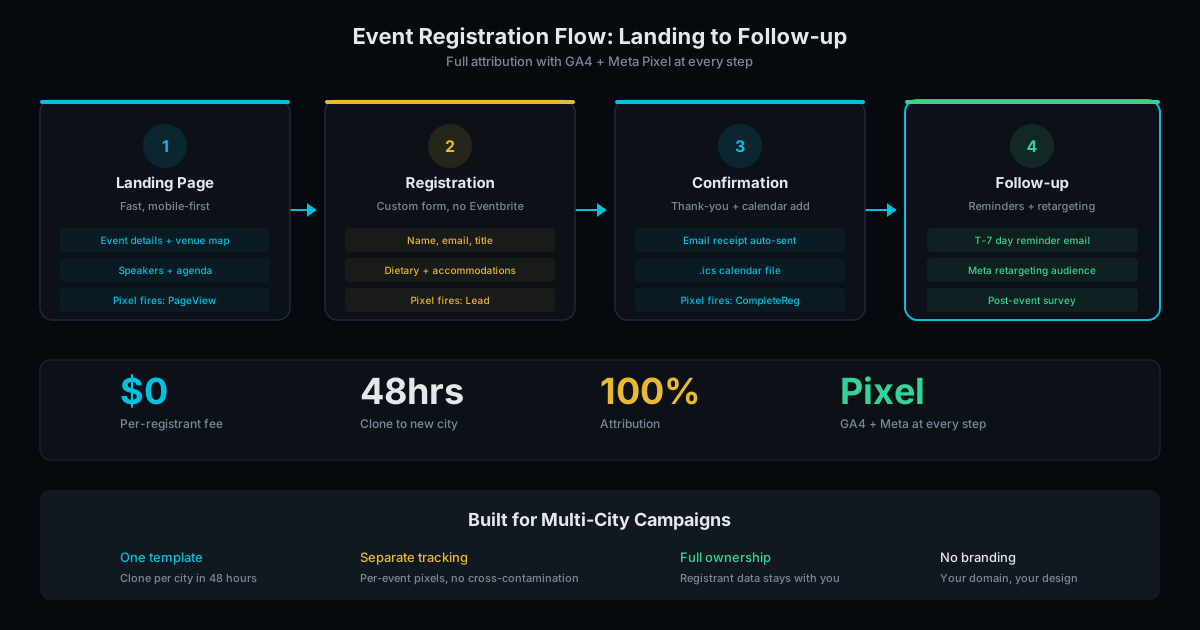
Step 2: Create custom events for the actions that matter. For lead generation sites: generate_lead fires on form submission. For ecommerce: purchase fires on order confirmation. For event registration: sign_up fires on the thank-you page.
Step 3: Mark those events as conversions. In GA4, go to Admin > Events, find your custom event, and toggle "Mark as conversion." This tells GA4 to track and report on these events separately from general page views.
Step 4: Verify with Realtime reports. Submit a test form on your site, then check GA4 > Realtime. You should see your conversion event appear within seconds. If it does not, check your event trigger configuration.
Setting Up Conversion Events in Meta
The base Pixel fires a "PageView" on every page load. That is not enough. You need to tell Facebook when specific valuable actions happen:
- Lead event: Fire when a contact form is submitted. Add
fbq('track', 'Lead')to your form's success handler or on the thank-you page. - CompleteRegistration: Fire when someone registers for an event or webinar.
- Schedule: Fire when someone books a call or appointment.
- ViewContent: Fire on key pages (pricing, case studies) to build retargeting audiences of high-intent visitors.
In Meta Events Manager, verify that each event fires correctly by using the Test Events tool. Enter your website URL, trigger the action, and confirm the event appears in the test log. Misconfigured events are the #1 reason Facebook campaigns underperform: the algorithm cannot optimize for conversions it cannot see.
Common Tracking Mistakes
After auditing dozens of Facebook Ad accounts, these are the tracking issues we see most often:
- Pixel on the homepage only. The Pixel must be on every page. If it is only on the homepage, Facebook cannot track conversions that happen on interior pages (contact form, pricing page, thank-you page).
- Firing Lead events on page load instead of form submission. This counts every visitor as a lead, inflating your numbers and confusing the algorithm. The Lead event should only fire after a successful form submission.
- No thank-you page redirect. If your form shows an inline "Thank you" message instead of redirecting to a thank-you page, tracking is harder. A dedicated thank-you page URL is the cleanest conversion trigger for both GA4 and Meta Pixel.
- Ignoring the Conversions API. Browser-only tracking misses 25-40% of conversions due to ad blockers. Without CAPI, Facebook's algorithm optimizes on incomplete data. Implementing CAPI typically improves reported conversion volume by 15-30%.
- UTM parameters stripped by redirects. If your site redirects (HTTP to HTTPS, www to non-www), check that UTM parameters survive the redirect. Lost UTMs mean lost attribution in GA4.
Get Tracking Set Up Right
Tracking setup is included in every ad campaign we manage and every website we build. If your current site has no conversion tracking (or broken tracking), we fix it as part of campaign setup.
Ad campaign setup (including pixel, events, and audience creation): $500 to $1,000. See pricing details or contact us to get your tracking right before spending another dollar on ads. Also read our ad management cost breakdown to understand the full investment.
Frequently Asked Questions
Do I need the Meta Pixel if I use GA4?
Yes. They serve different purposes. GA4 tracks all traffic for your analysis. Meta Pixel feeds data back to Facebook's algorithm to optimize ad delivery. Without the Pixel, Facebook cannot learn which of your clicks convert, and your campaigns perform worse.
Does the Meta Pixel slow down my site?
Minimally. The Pixel script is about 2KB and loads asynchronously. It should not affect PageSpeed by more than 1-2 points. Load it with defer if you want to minimize any render-blocking impact.
What about ad blockers?
Browser-based ad blockers block the Meta Pixel for 25-40% of users. The Conversions API (server-side tracking) bypasses this by sending data from your server to Facebook. For accurate tracking, implement both browser Pixel and CAPI.
Ready to Fill Your Next Event?
We build the page, set up the pixels, and run the ads. You run the event.